

Copilot/Functions
Copilot
Copilot Features
How to use the ApiHug Copilot editor, chat panel, and IntelliJ actions.
ApiHug Copilot is designed to feel like part of the IDE rather than a detached chat window.
What It Is
The feature set is split across three places:
- the input editor for prompt entry and shortcuts
- the tool window or standalone chat panel
- editor actions that send local code context into the conversation
Why It Matters
This layout keeps the workflow tight. You can inspect code, ask a question, reuse a prompt, and apply the result without jumping between unrelated tools.
How It Fits
Prompt-aware editor
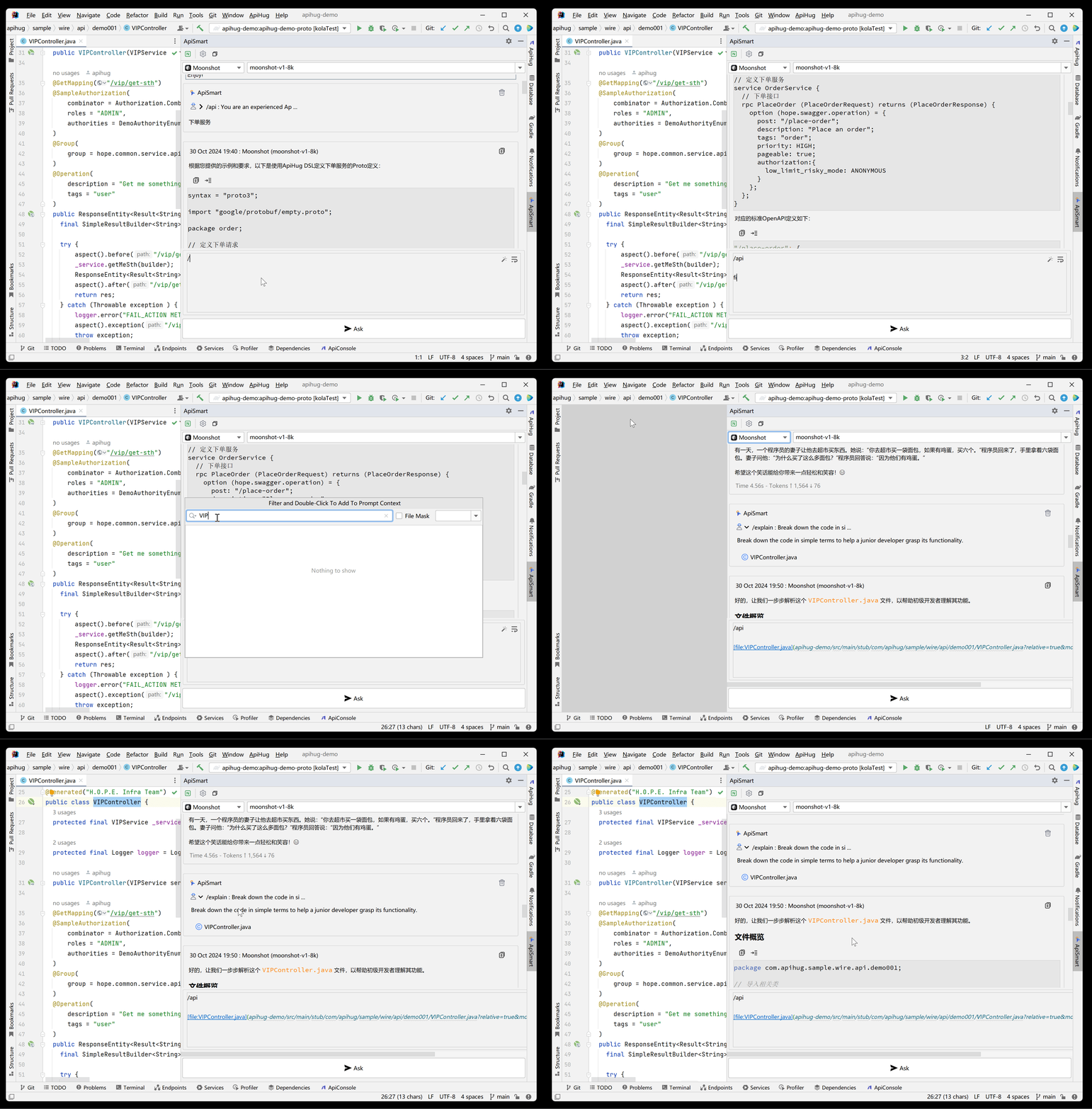
The input editor extends normal Markdown entry with IDE-aware helpers:
- type
/to open prompt completion - use
file:to attach project files - keep writing free-form instructions when no shortcut applies
Tool window and standalone panel
The right-side tool window includes:
- session controls
- provider and model selection
- the main chat stream
- the input box and send action
If you want more space, open the standalone panel from the tool window toolbar. It uses the same capabilities with a wider layout.
Conversation panel
The chat panel supports:
- Markdown rendering
- project file links
- prompt links and collapsible context
- code block actions such as copy or insert into the current editor
- conversation deletion when you want a clean thread
Editor ask action
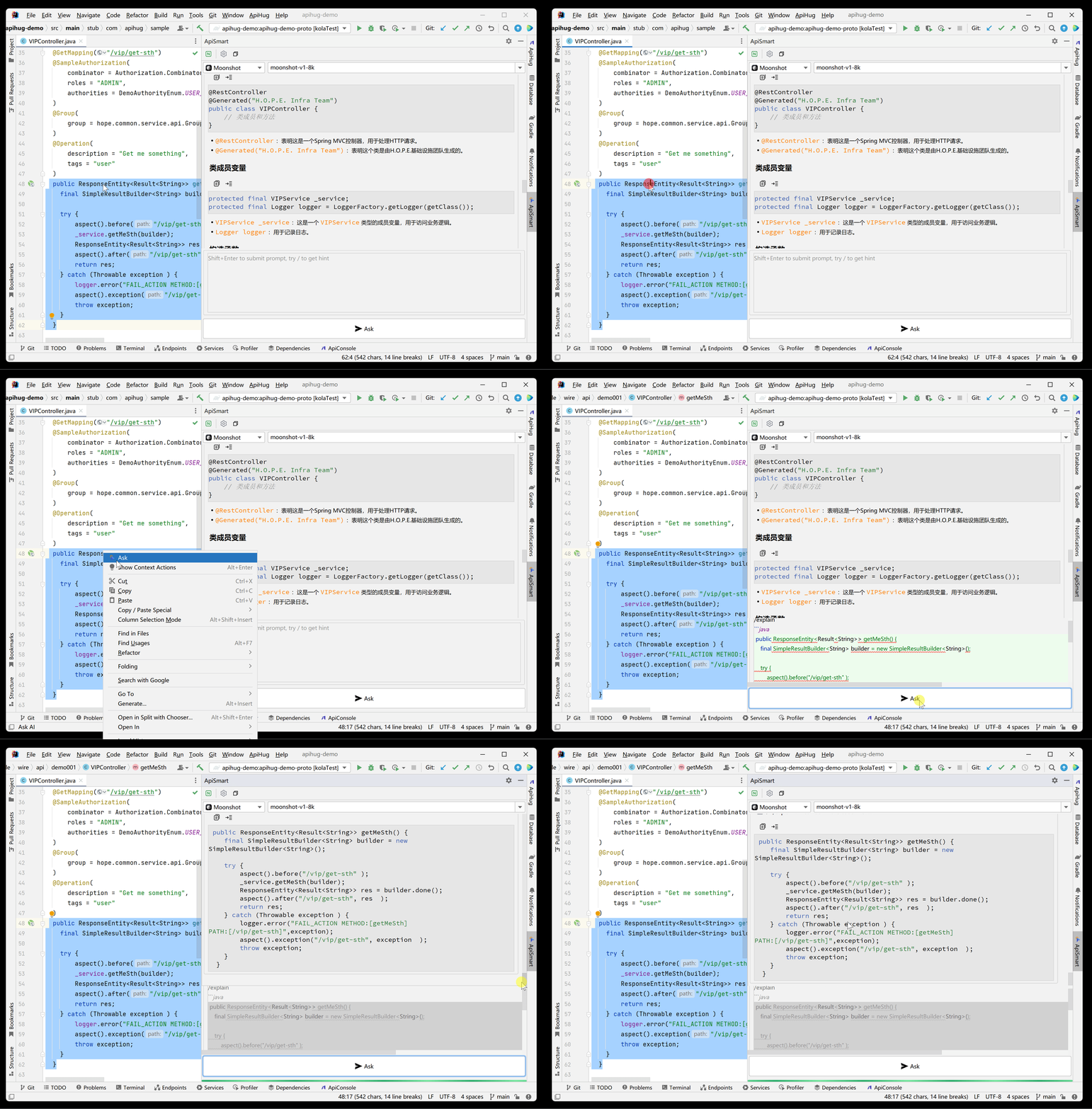
Right-click inside an editor and use Ask to send the current context to Copilot.
Next Step
- Tune providers and prompts in Copilot Settings
- Pair Copilot with Skills & Rules for ApiHug-specific delivery work
Copyright © 2026 ApiHug·AI-native Enterprise Architecture Factory